
Documentation / Loupa Connect
Connect HubSpot
How to go from Loupa installed to your MemberPress subscriptions in HubSpot. It takes about ten minutes, and nothing reaches HubSpot until you authorise it.
Before you start you need
- WordPress 6.5 or later and PHP 8.0 or later (see Compatibility).
- MemberPress and Loupa installed and active.
- A Loupa Connect licence, with its key.
- A HubSpot account and a user who can install apps in it.
1. Install Loupa Connect
Download the zip from your customer area on getloupa.com. In WordPress, go to Plugins → Add New → Upload Plugin, upload the file and activate it.
2. Read what is sent and accept it
On Loupa → Connect, the “Administrator’s acceptance” section explains which data leaves your website and where it goes: email, name, address, the fields you map, subscriptions and payments, never card data. Only an administrator can accept this. Until they do, Loupa Connect makes no request at all, not even to check the licence.
This acceptance is the administrator’s, on behalf of the company that owns the website. It is not your members’ consent: your company, as controller, decides the legal basis for processing their data.
If the text you accepted changes later, Loupa → Connect tells you with “Review the text”: read it and accept it again.
3. Paste the licence key
Paste the key in “Licence key” and press “Activate licence”. The key reached you by email when you bought and is only shown once. If you have lost it, create a new one from your customer area: the previous one stops working. One licence works on one website.
4. Connect HubSpot
Press “Connect HubSpot” and choose your portal. The “Loupa” app is not on the HubSpot App Marketplace yet, so HubSpot warns you that it is an unverified app. To go on, after “Connect app” type “I accept the risk” (“Acepto el riesgo” if your HubSpot is in Spanish) and press “Connect”.
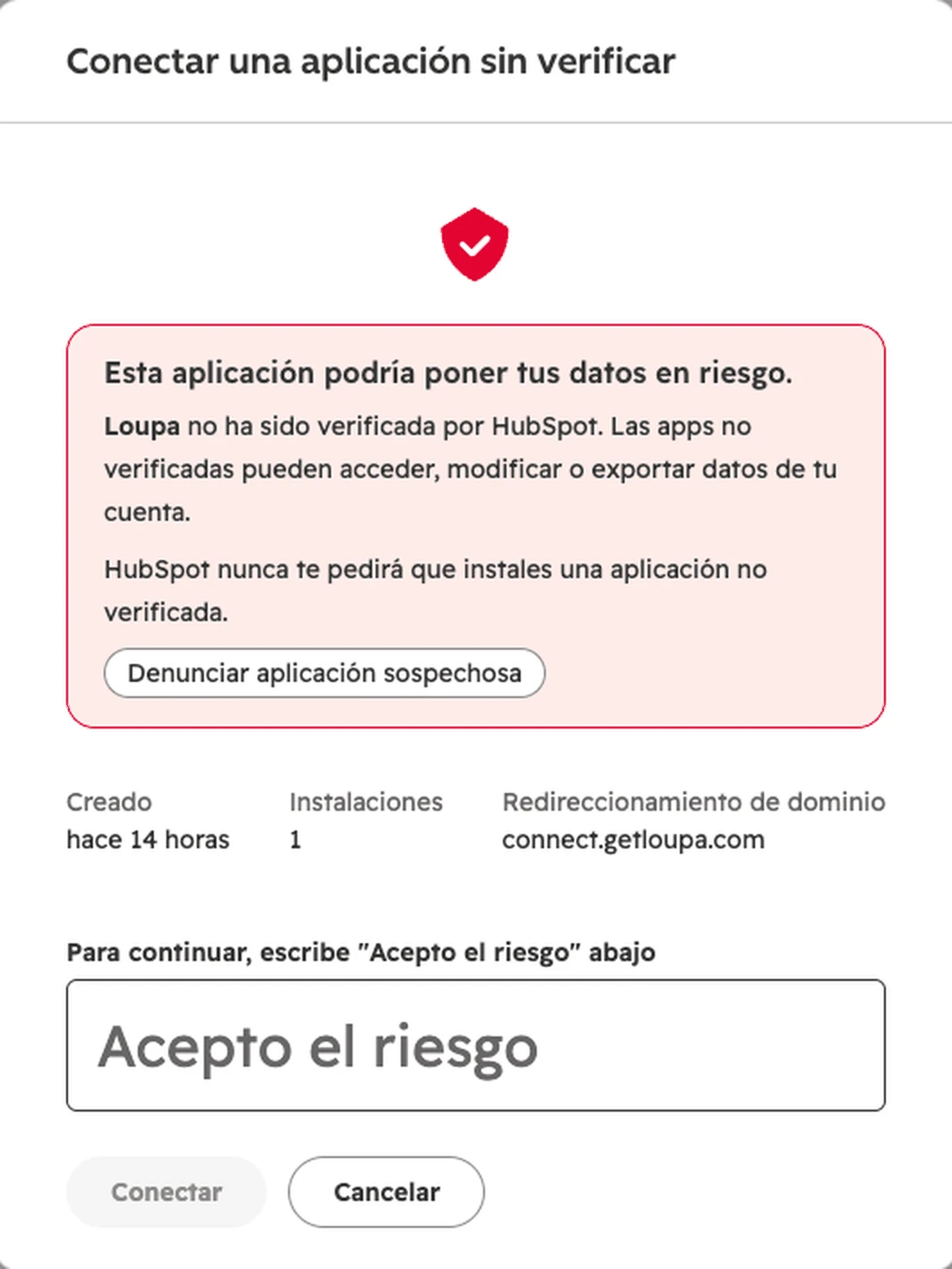 (opens the full-size capture)
5. Check that it is connected
Back on Loupa → Connect you will see your plan, the licence status, the active subscribers that count towards the limit and your HubSpot portal as connected. Loupa Connect starts in test mode: it reads HubSpot and tells you what it would do, without writing anything.
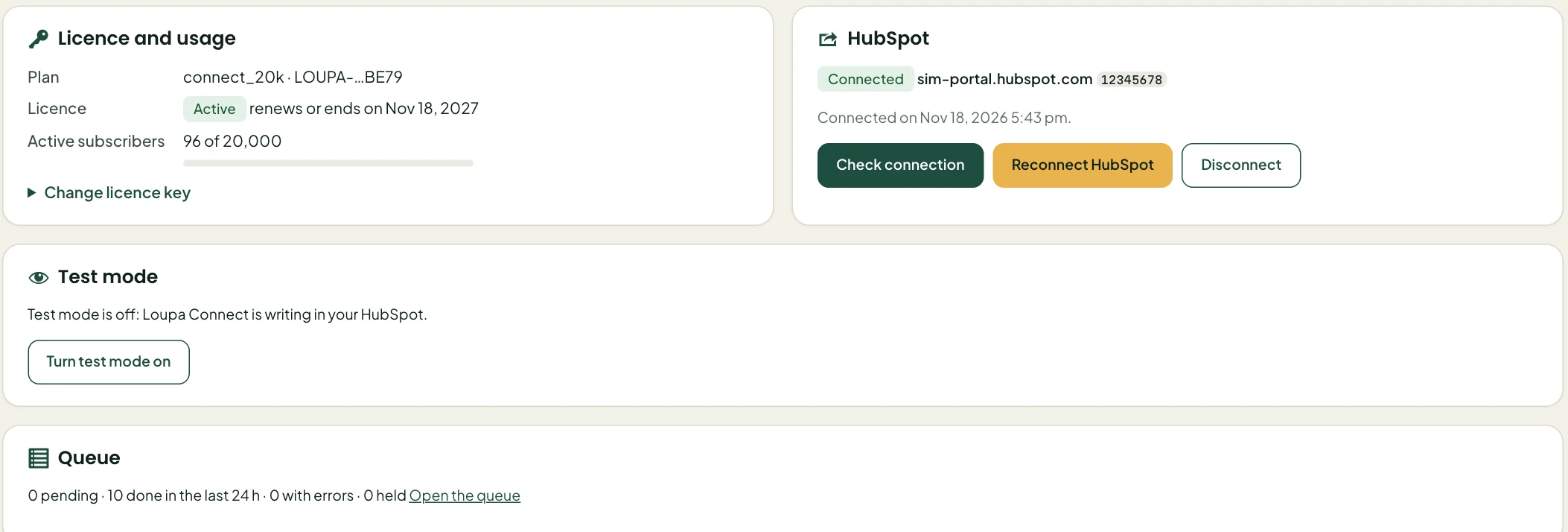 (opens the full-size capture)
Next steps
- Choose the pipeline and its stages, the data to send and, if you want them, the tickets: Pipeline, mapping and tickets.
- Import your history, check the queue and the log, and turn test mode off: Import, queue and test mode.
Something not working as described here? Write to us at hello@getloupa.com or see Support. We answer Monday to Friday, 9:00 to 18:00 (mainland Spain time).