
Documentation / Loupa
The Inspector and member pages
How to find members in the Inspector, filter them by real status and read the page of each member, with its warnings. Everything on these screens only reads data.
1. Open the Inspector
Go to Loupa → Inspector. It has two tabs: “Members”, with one row per person, and “Subscriptions”, with one row per subscription and the bulk actions.
This guide covers the “Members” tab and the member page. Everything comes from the MemberPress tables at the moment you open the screen.
2. Read the breakdown by real status
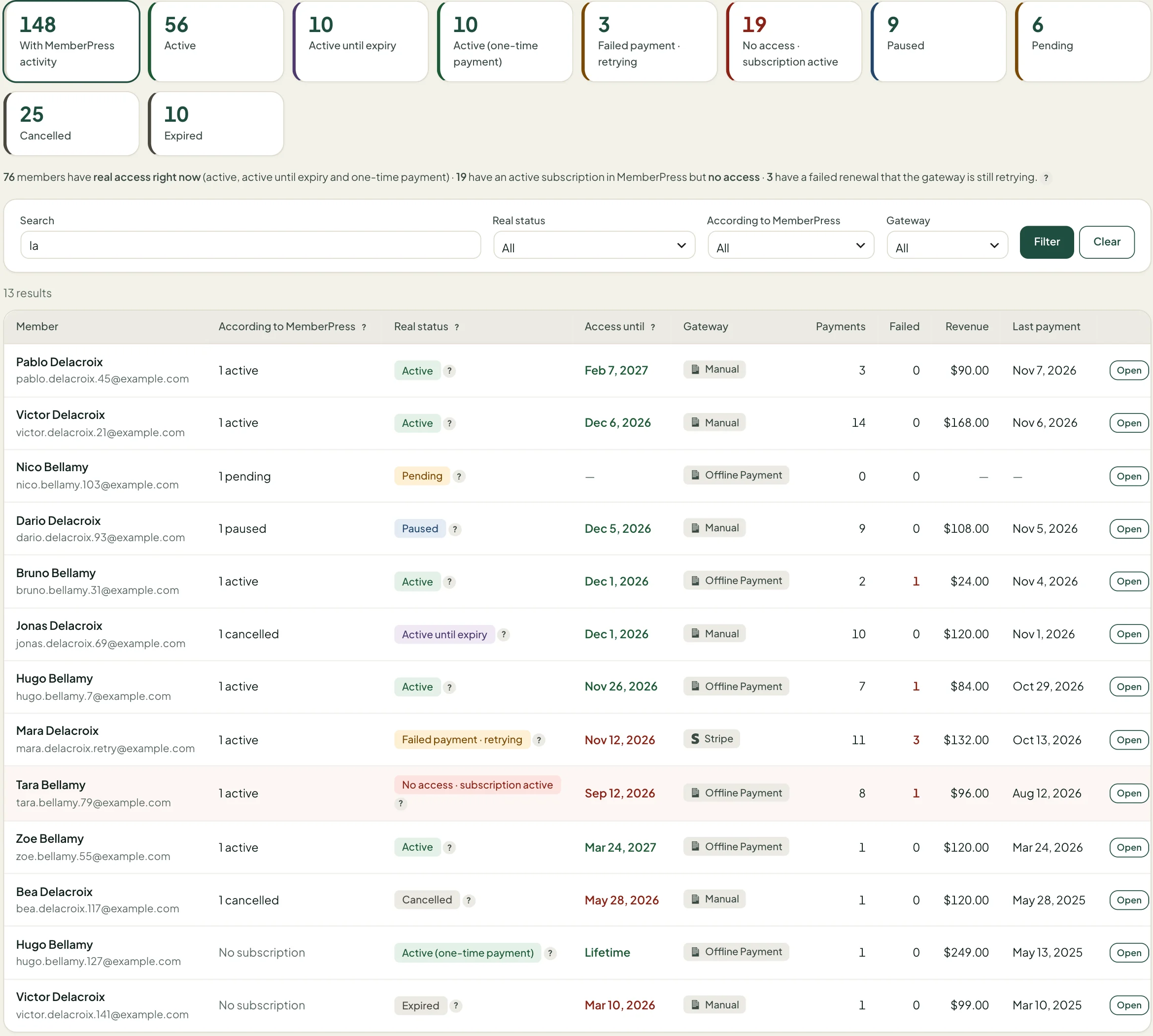
The tiles at the top count members by real status. Click one to filter the list.
Below them, one line sums up who has real access right now and how many have an active subscription in MemberPress without access. The “See mismatches” button in the header goes straight to those.
 (opens the full-size capture)
3. Search and filter the list
Type an email, a name or a username in “Search”. You can add three filters: “Real status”, “According to MemberPress” and “Gateway”.
Press “Filter” to apply them and “Clear” to start again. Filters add up and stay in the address of the page, so you can share the link.
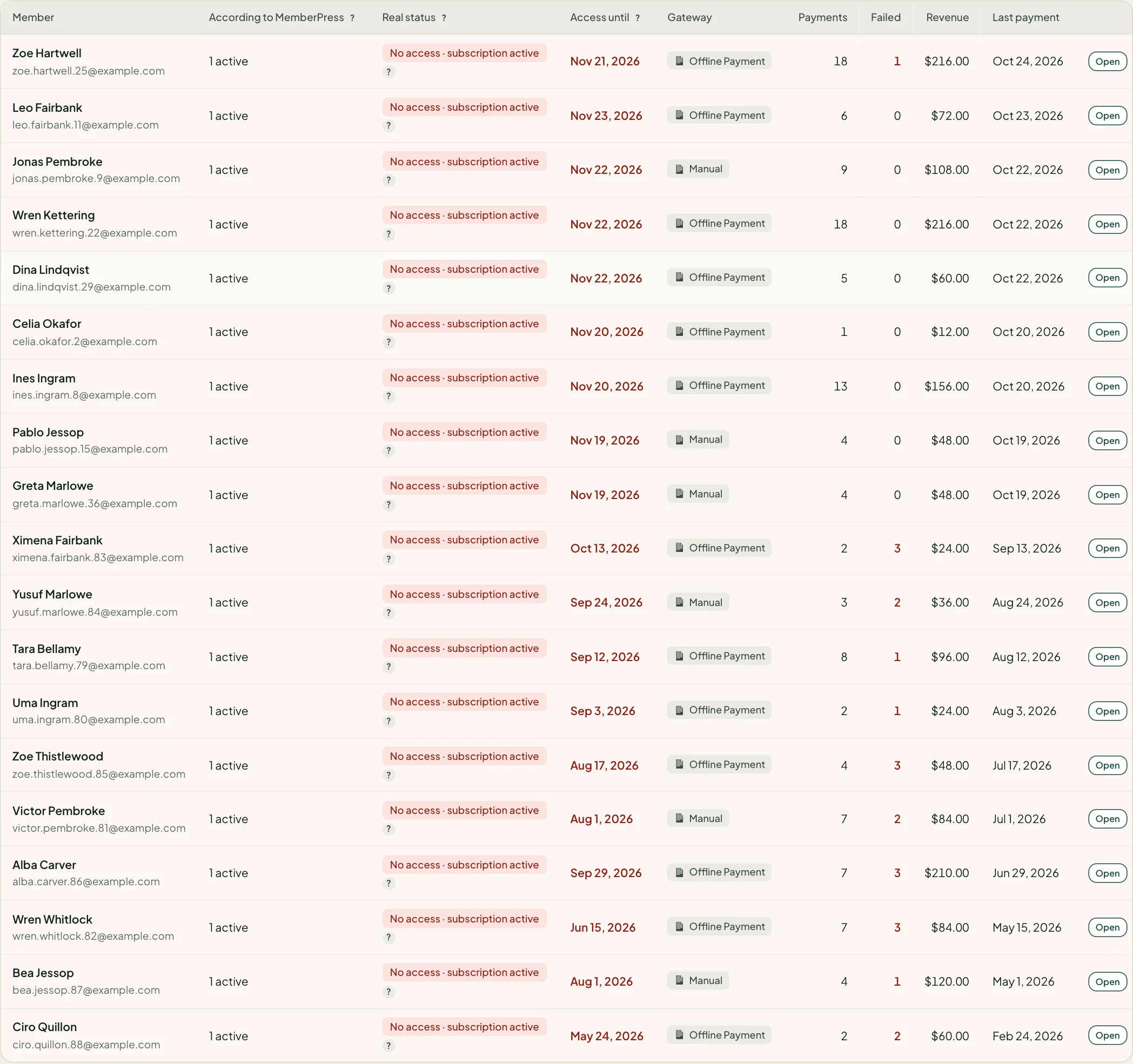
4. Understand the columns
- Member: display name and email of the WordPress user. Click it, or “Open”, to see the member page.
- According to MemberPress: how many subscriptions are in each raw MemberPress status. “Active” here does not mean access.
- Real status: access crossed with renewal. See The 9 states.
- Access until: end of the latest transaction that gives access. Green while it still does, red once it has passed, “Lifetime” when it never expires.
- Gateway: Stripe, PayPal, offline… with the name set in Loupa → Settings → Payment gateway names.
- Payments, Failed, Revenue and Last payment: completed and failed payments, the sum of completed ones and the date of the latest.
 (opens the full-size capture)
5. Read the member page
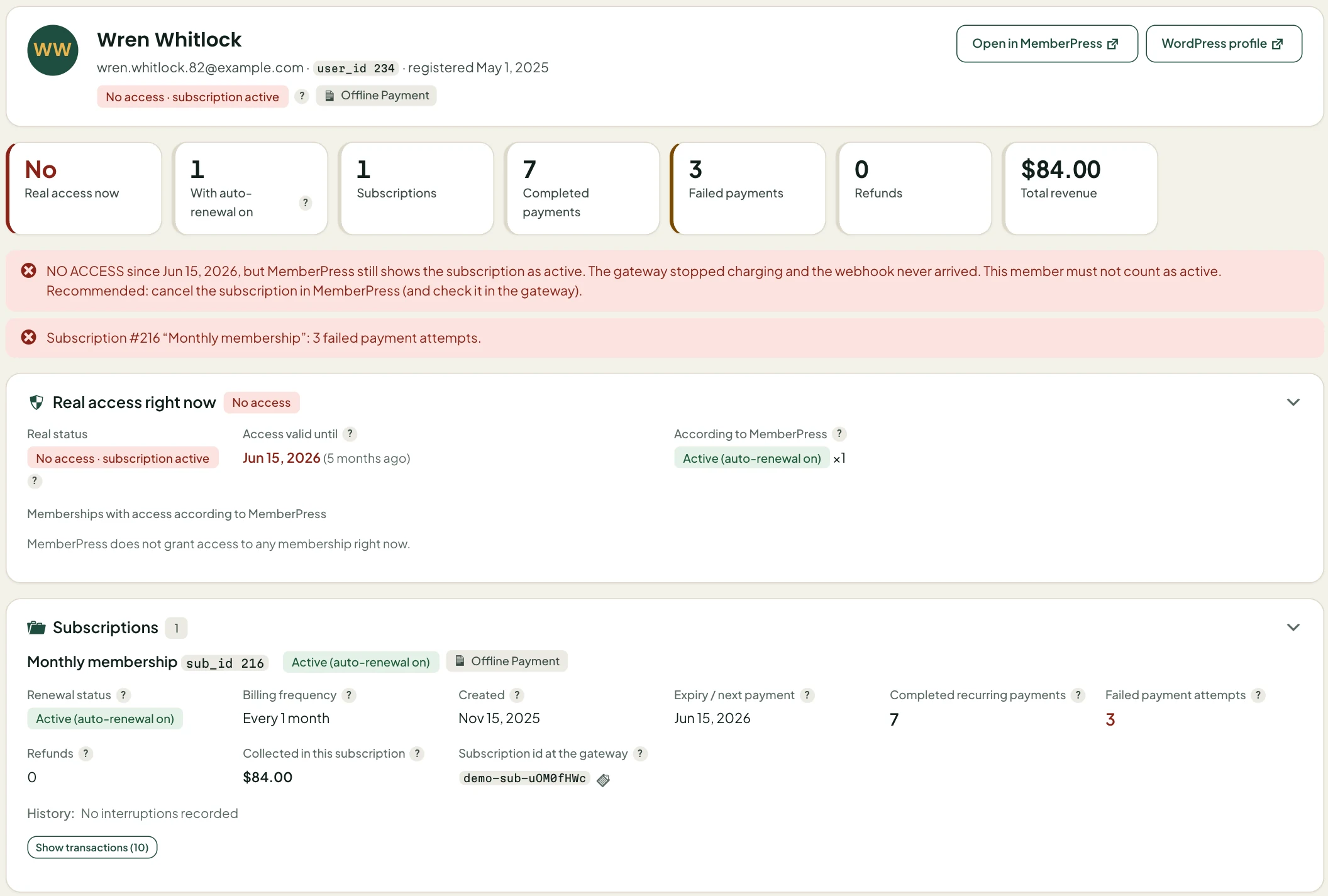
It gathers on one page what MemberPress spreads over members, subscriptions, transactions and events. From top to bottom you will find:
- Header and figures: real status, gateways, links to MemberPress and to the WordPress profile, and totals for access, subscriptions, payments, failures, refunds and revenue.
- Warnings: red, amber or blue, when something does not add up. For example, an active subscription without access, an expired card before the next charge, or several failed payments.
- Real access right now: real status, the date access lasts until, the raw MemberPress status and the memberships MemberPress grants today.
- Subscriptions: one card per subscription, with status, dates, payments, failures, gateway id and card digits and expiry. “Show transactions” opens its transactions.
- All transactions with a search box, the billing address, the MemberPress custom fields and the event history.
The “?” next to each field explains where it comes from.
 (opens the full-size capture)
6. When a customer says they cannot get in
Search the customer by email and open their page. Look at “Real access right now”.
If the real status is “No access · subscription active”, the gateway stopped charging. The warnings say since when and whether the card expired.
If the real status shows access but MemberPress grants no membership, a warning says so: check the access rules of the membership. To look the subscription up in Stripe or PayPal, copy its gateway id with the button next to it.
Next steps
- Act on many subscriptions at once from the “Subscriptions” tab: Bulk actions.
- See the trend behind the members: Reports.
Something not working as described here? Write to us at hello@getloupa.com or see Support. We answer Monday to Friday, 9:00 to 18:00 (mainland Spain time).