
Documentation / Loupa Connect
Licence: moving the site, stopping and deleting
The plan limit, a lost licence key and moving to another website. Also how to withdraw the authorisation of Loupa Connect and delete your data.
Before you start you need
- Loupa Connect linked to your licence: Connect HubSpot.
- An administrator account on the website: only administrators see these actions.
1. Check your licence and usage
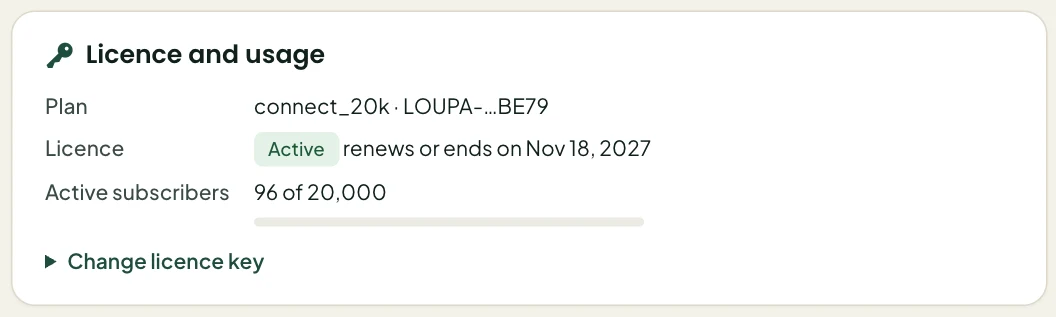
On Loupa → Connect, the “Licence and usage” card shows your plan with the end of your key, the licence status and when it renews or ends. It also shows how many active subscribers you have against the plan limit.
Active subscribers are people with a subscription that is active, cancelled with access until the end of the period, one-time with access, or paused. Each person counts once. Loupa counts them with the same rules as the Inspector and reports the number once a day.
 (opens the full-size capture)
2. Going over the plan limit
Up to 5 % over the limit, nothing happens. Beyond that there are 7 days of grace in which everything keeps working. The Connect screen shows when the grace ends and how many people are held, with a link to “Upgrade your plan”.
After the grace, people who are new to HubSpot wait in the queue of your website as “Held (plan limit)”. People already in HubSpot keep syncing. Every Loupa screen warns you from 1,000 held people, or 10 % of the plan limit if that comes first.
Held people are sent on their own when you upgrade or when active subscribers go below the limit plus 5 %. Loupa Connect checks every 15 minutes and sends each person once, with their current data. On Loupa → Queue, the “Held” filter lets you discard a row or retry it.
3. If the licence expires, is cancelled or is suspended
You can cancel the renewal from your customer area on getloupa.com or by writing to hello@getloupa.com. The licence stays active until the end of the paid period. If a payment fails, the licence keeps working for 7 days and is then suspended.
When the licence is no longer active, the queue stops and waits: nothing is lost. Syncing with HubSpot stops and plugin updates are no longer available. Everything already in your HubSpot stays there.
4. Replace a lost licence key
The key is shown only once and is not kept in clear, so a lost key cannot be shown again. Create a new key for the same licence from your customer area; the previous one stops working.
On Loupa → Connect, open “Change licence key”, paste it in “New licence key” and press “Change key”. The site stays linked: settings, the HubSpot connection, the queue and the site secret are kept.
A key of another licence is refused and nothing changes. If the new key is refused right after you created it, wait a few minutes and try again.
Linking the site again from the start
You may need to link the site again with its key, for example after reinstalling the plugin and losing the site secret. Settings and import history are kept. HubSpot is disconnected, though: connect it again from Loupa → Connect. This way, a licence key and a website address alone never give access to your HubSpot.
5. Move to another website
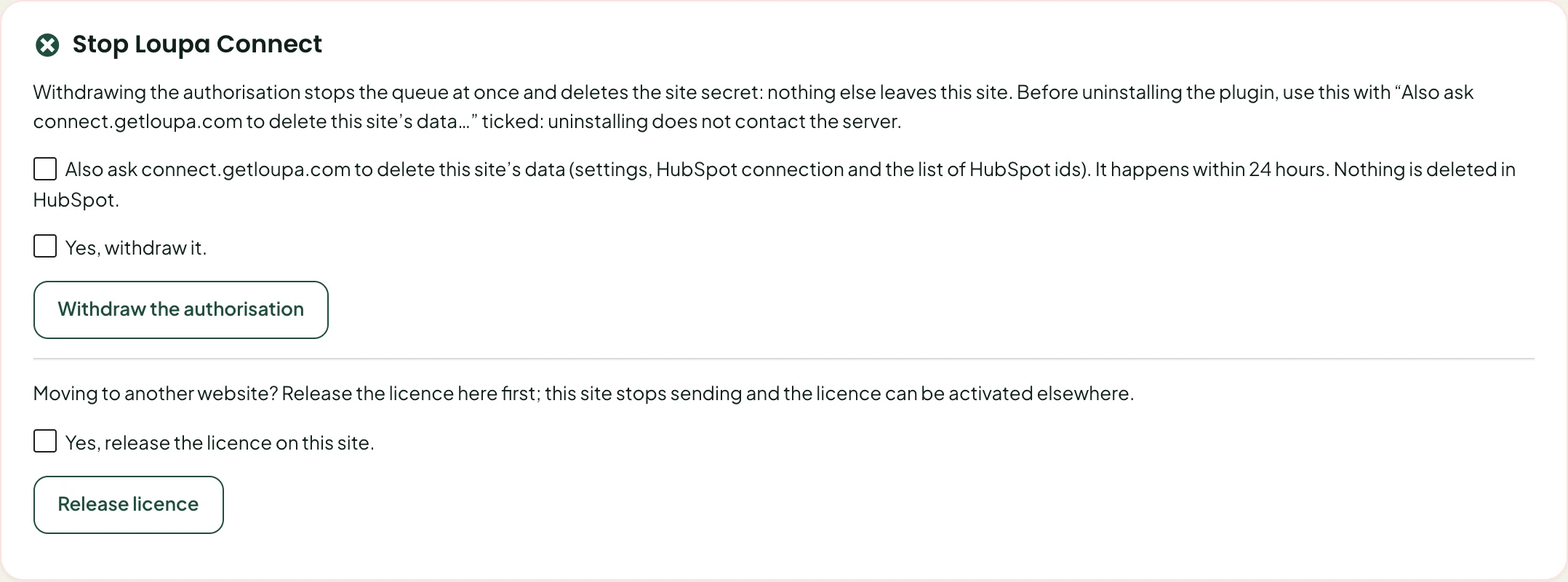
One licence works on one website. To move it, go to the bottom of Loupa → Connect on the old website, tick “Yes, release the licence on this site.” and press “Release licence”. You can also do it from your customer area on getloupa.com, with “Move to another website”, once every 30 days.
At that moment, connect.getloupa.com deletes what it kept for that website:
- the HubSpot connection, which is also revoked in HubSpot;
- the settings and the mapping;
- the link between WordPress users and HubSpot records;
- the activity log.
The licence is free at once to activate on another website. Nothing already in your HubSpot is touched. On the new website you accept, paste the key, connect HubSpot and set up the pipeline and the mapping again.
If the old website no longer responds, write to hello@getloupa.com and we release it for you, with the same result.
6. Staging copies and new addresses
Loupa Connect remembers the address it was linked with. If it changes, for example in a staging copy or a clone that carries the database, it stops sending and keeps the events in the queue. Loupa → Connect then asks an administrator what happened. Moving from http to https does not count.
- Continue with this website: tick “This is the original website, not a copy.” only if it is the same website at a new domain. Sending resumes to the same HubSpot portal.
- Unlink this copy: on a staging, test or cloned copy. It forgets the link on the copy only and cancels what it had not sent. The original website is not touched.
On a copy, if you want it to stop sending, withdraw the authorisation without ticking the box to delete this site’s data (section 8). Never release the licence from the copy: that would unlink the original website.
7. Disconnect HubSpot without withdrawing the authorisation
In the “HubSpot” card of Loupa → Connect, “Disconnect” removes only the HubSpot connection: it is deleted and revoked in HubSpot.
The settings, the mapping and the link between WordPress users and HubSpot records are kept. Events wait in your website’s queue until you connect again with “Connect HubSpot”.
8. Withdraw the authorisation and delete your data
At the bottom of Loupa → Connect, under “Stop Loupa Connect”, tick “Yes, withdraw it.” and press “Withdraw the authorisation”. The queue stops at once and the site secret is deleted: nothing else leaves your website.
Above it there is this box: “Also ask connect.getloupa.com to delete this site’s data (settings, HubSpot connection and the list of HubSpot ids). It happens within 24 hours. Nothing is deleted in HubSpot.” If you tick it, connect.getloupa.com unlinks the site and deletes that data. The data in your HubSpot is not touched: it is yours.
If you do not tick it, your website stops sending, but its data stays on connect.getloupa.com until you ask for it to be deleted or the licence ends.
 (opens the full-size capture)
Before uninstalling, withdraw the authorisation with the box “Also ask connect.getloupa.com to delete this site’s data…” ticked. Uninstalling deletes the plugin’s table, options and scheduled tasks, but does not contact the server.
To come back, accept again and link the site with the licence. If the data was deleted, run the import again: it does not duplicate what is already in HubSpot.
9. What is kept after a deletion
A deletion does not leave connect.getloupa.com completely empty. Two things are kept:
- a record of the deletion, so we can show that it was done: only the site identifier, the reason for the deletion and the dates of the request and of when it was carried out or cancelled, with no subscriber data at all. It is kept for 5 years from when the deletion is carried out or cancelled;
- the encrypted backups, which expire within 30 days at most. If a backup has to be restored, the deletions are reapplied before the service resumes.
Next steps
- Run the import again after linking a site: Import, queue and test mode.
- Agree, paste the key and connect HubSpot on a new website: Connect HubSpot.
Something not working as described here? Write to us at hello@getloupa.com or see Support. We answer Monday to Friday, 9:00 to 18:00 (mainland Spain time).