
Documentation / Loupa Connect
Import, queue and test mode
How to send your MemberPress history to HubSpot, follow every event in the queue and move from test mode to writing for real.
Before you start you need
- Loupa Connect connected to HubSpot: Connect HubSpot.
- The pipeline and the mapping saved: Pipeline, mapping and tickets.
1. Know what test mode does
Every site starts in test mode. Events are queued and sent to connect.getloupa.com, which reads HubSpot and answers what it would do, but writes nothing. Every Loupa screen shows “Test mode: nothing is being written to HubSpot”.
2. Choose who is imported
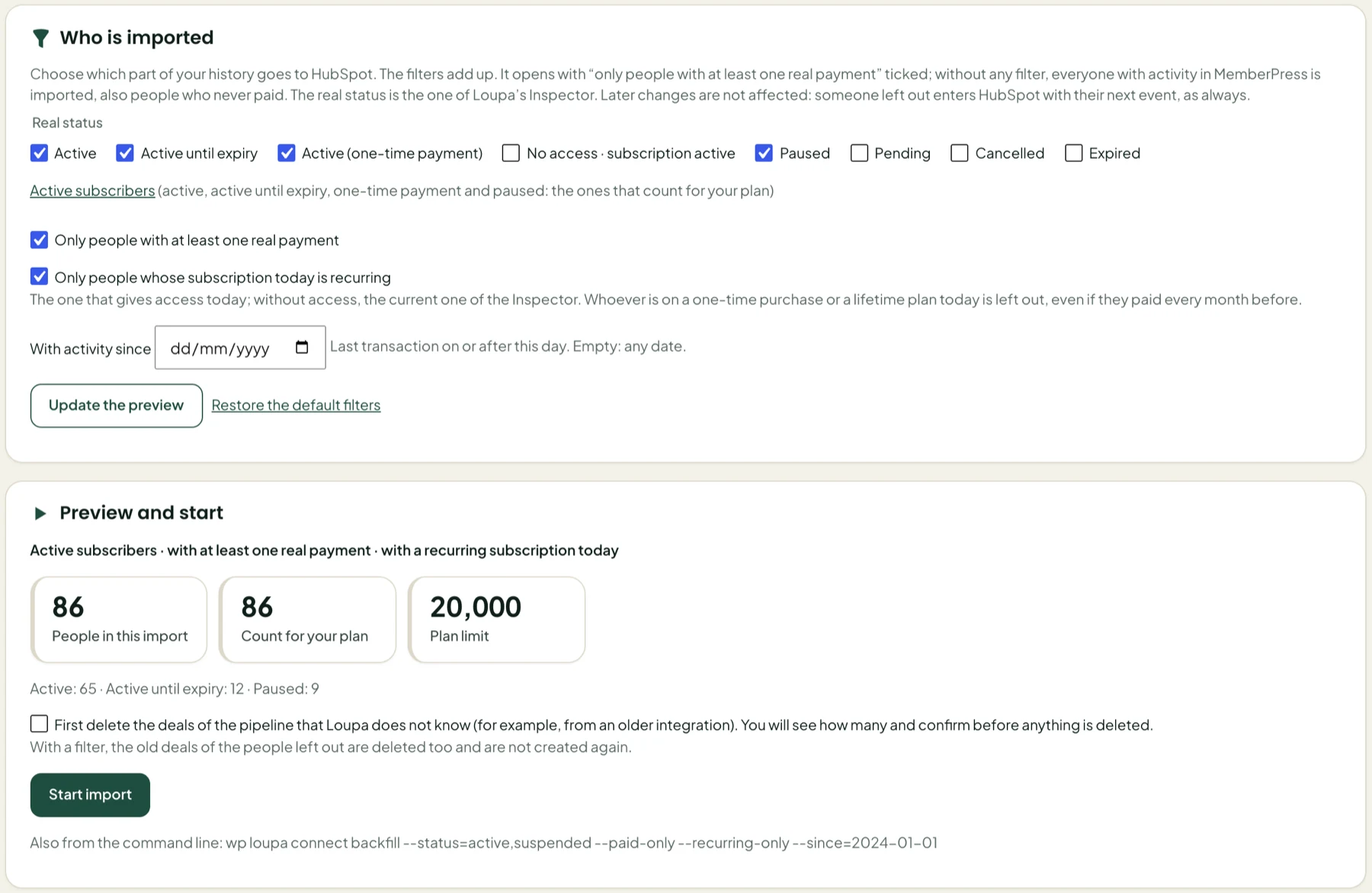
Go to Loupa → Import. In “Who is imported” you choose which part of your history goes to HubSpot. The filters add up, and the real status is the one of the Inspector.
- Real status: one or more statuses. The “Active subscribers” shortcut ticks active, active until expiry, one-time payment and paused, the ones that count for your plan.
- Only people with at least one real payment: leaves out free memberships, trials that never charged and pending sign-ups. It is ticked when the screen opens.
- Only people whose subscription today is recurring: whoever is on a one-time purchase or a lifetime plan today is left out, even if they paid every month before.
- With activity since: the last transaction of the person is on or after that day.
Without any filter, everyone with activity in MemberPress is imported, also people who never paid. Press “Update the preview” after each change, or “Restore the default filters” to start again.
 (opens the full-size capture)
3. Check the preview
“Preview and start” shows the “People in this import”, how many “Count for your plan” and your “Plan limit”. It also warns you if some of them never had a real payment.
If the people who count are more than the plan limit plus the 5 % margin, the preview says so. After 7 days of grace, people who are not in HubSpot yet are held until you move to a bigger plan.
The scope only applies to this import. Someone left out enters HubSpot with their next event, such as a new payment. The Log keeps the filters and counts of each import.
4. Clean up old deals, if you need to
If the pipeline holds deals from an older integration, tick “First delete the deals of the pipeline that Loupa does not know”. The screen shows how many there are and asks you to confirm with “Delete and import”.
Deleted deals go to the HubSpot recycle bin, where they can be restored for 90 days. Contacts, tickets and other pipelines are not touched. In test mode nothing is deleted: you only see how many would be.
With a filter, the old deals of the people left out are deleted too and are not created again. The confirmation says how many people that is and asks you to tick it separately.
5. Start the import
Press “Start import”. Loupa Connect sends each person with all their subscriptions and payments, in batches of up to 100 people. Each person gets a contact, and each subscription or one-time purchase a deal at today’s stage.
The import runs in the background. You can “Pause”, “Resume” or “Cancel import”; what was already sent stays in HubSpot. Running it again only updates, because each deal carries a technical key in the property “Loupa · Local key (technical)”. Do not edit or delete that property in HubSpot.
The import also runs from the command line with wp loupa connect backfill.
6. Follow the queue
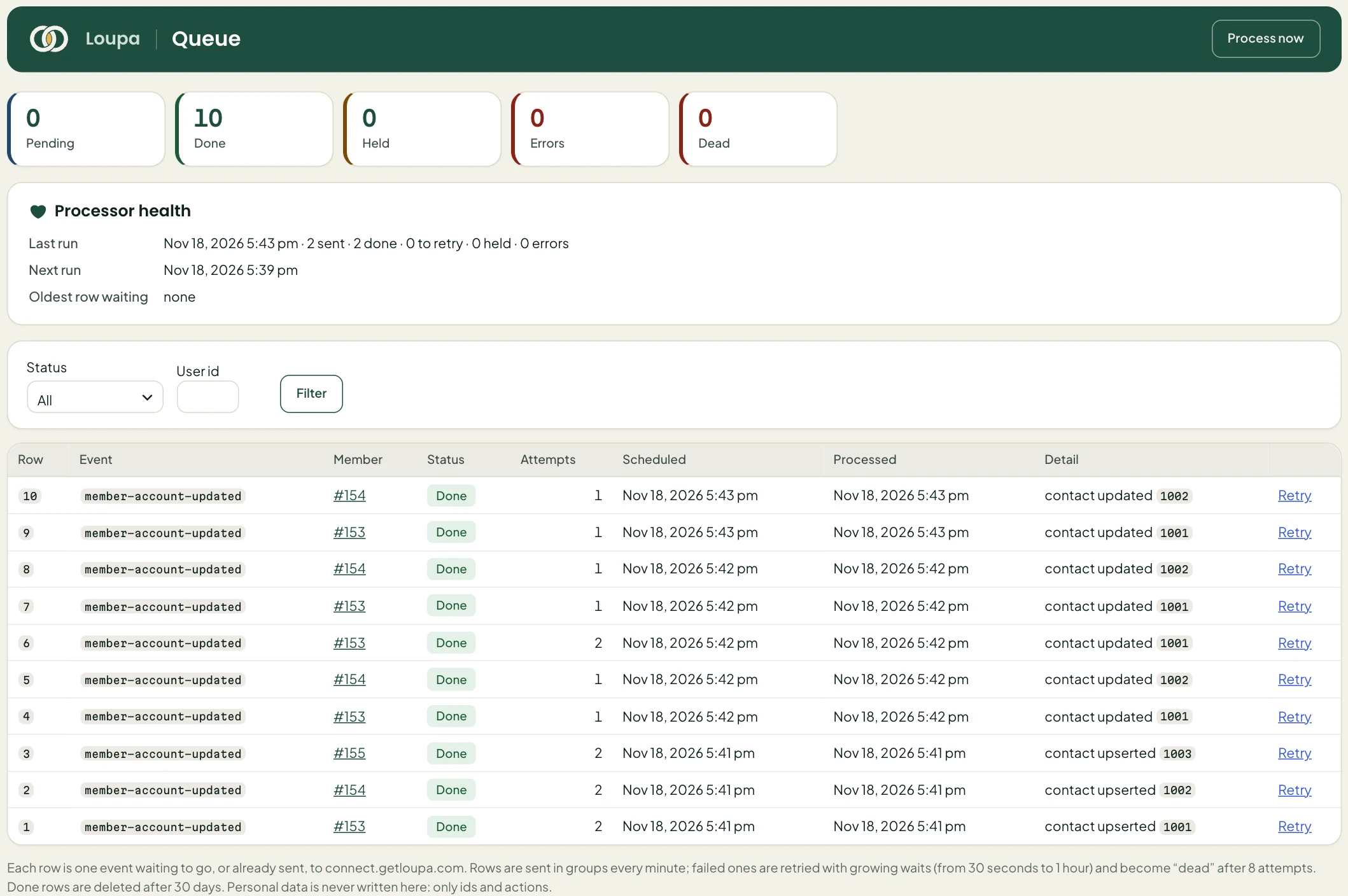
Loupa → Queue lists the events waiting to go and the ones already sent. It runs on its own every minute, in groups of up to 20, and “Process now” runs it at once. You can filter by “Status” and “User id”.
- Pending: waiting for its turn or its date. Failed attempts wait from 30 seconds up to one hour.
- Done: sent and applied. In test mode the “Detail” starts with “Test mode” and says what would have been done.
- Held (plan limit): a new person over the plan limit, after the grace days.
- Error: a problem that waiting does not fix, such as a missing property or stage. Fix it, often on Mapping or Pipeline, and press “Retry”.
- Dead: eight failed attempts in a row. When the cause is gone, press “Retry every error”.
- Cancelled: a scheduled ticket that no longer makes sense, or a row you discarded with “Discard”.
 (opens the full-size capture)
“Processor health” shows the last run, the next one and the oldest row waiting. If rows are more than 10 minutes late, check that WP-Cron runs on the site. Retrying never duplicates anything, and done rows are deleted after 30 days.
When the whole queue stops
Some answers stop the whole queue, with a notice on every Loupa screen: the site is not recognised, the licence expired or is suspended, or HubSpot is disconnected. The rows wait without spending attempts. Sending resumes on its own once the cause is fixed.
7. Turn test mode off
First check three things. The queue shows the events as “Done” with the expected actions. “Check connection” on Loupa → Connect is clean, and the test import looked right.
On Loupa → Connect, in the “Test mode” card, tick “I understand that from now on Loupa Connect writes contacts, deals and tickets in our HubSpot.” and press “Turn test mode off”. Then run the import again, this time for real.
From that moment Loupa Connect creates and updates contacts, deals and tickets in your HubSpot. “Turn test mode on” stops new writes, but what was already written stays in HubSpot.
Next steps
- Plan limit, held people, a new key and moving to another website: Licence: moving the site, stopping and deleting.
- Change the stages, the data you send or the tickets: Pipeline, mapping and tickets.
Something not working as described here? Write to us at hello@getloupa.com or see Support. We answer Monday to Friday, 9:00 to 18:00 (mainland Spain time).